
- Familiar VS Code interface and extensions
- Excellent codebase context awareness
- Impressive multi-file editing with Composer
- Fast performance and response speed
- Effective natural language code generation
- Subscription pricing is relatively expensive
- Introduces unexpected changes to existing code
- Occasional hallucinations and nonsensical responses
- Inconsistent coding styles require manual review
- Complexity issues lead to synthesis errors

Quick Answer: Cursor is the best AI code editor for developers who want a smart assistant that understands their entire project. It combines the comfort of VS Code with deep AI integration that writes and fixes code across many files at once. I rate it 9.2/10 because it saves hours of manual work every week despite a higher price tag.
Best For: Developers and small teams who want to build features faster using natural language and advanced project-wide AI context.
Key Takeaways:
- ✅ Multi-file editing with Composer can change dozens of files in a single prompt.
- ✅ Local codebase indexing allows the AI to answer specific questions about your unique logic.
- ⚠️ Microsoft has restricted access to some official VS Code extensions like Python and C++.
- 💰 Pricing starts at $20 per month for the Pro plan with 500 fast requests.
I have spent the last few months using Cursor for all my personal and professional coding projects. It is a fork of VS Code that puts AI at the center of the experience rather than just adding a side panel. This review explores if Cursor remains the top choice for developers in 2026.
Ratings Breakdown
Cursor has grown rapidly this year by focusing on speed and deeper project context. These ratings reflect how the tool performs against the latest version of GitHub Copilot and other AI editors. Each score is based on my hands-on testing and common feedback from the developer community.
| Category | Rating | Notes |
|---|---|---|
| Ease of Use | 9/10 | If you know VS Code, you already know how to use this. |
| Features | 10/10 | Composer and Shadow Workspace set the standard for 2026. |
| Value for Money | 8/10 | It is expensive but the time savings usually cover the cost. |
| Customer Support | 7/10 | Support is mostly through a community forum and can be slow. |
| Performance/Reliability | 8/10 | Very fast but can have connection issues during peak times. |
Overall: 9.2/10 – Cursor is currently the most capable AI editor for engineers who need project-wide code generation.
Pros and Cons (The Real Deal)
Choosing a code editor is a personal decision that affects your daily productivity. I have looked at what developers on Reddit and G2 love and hate about the platform. Here are the five biggest strengths and five main weaknesses you should know.
✅ What Cursor Gets Right
- Superior Project Context Awareness – Cursor indexes your entire folder so it knows how different files interact. It can find where a variable is defined and suggest changes that follow your specific patterns. This prevents the generic or wrong suggestions common in older AI tools.
- Fast Multi-File Editing – The Composer mode lets you ask for a feature in plain English. The AI then plans the changes and edits several files at once. You can review the diffs in one view and accept them with one click.
- Support for Top Models – You can choose between Claude 3.5 Sonnet, GPT-4o, and o1-mini. This flexibility lets you use the best model for the task. I use Claude for writing code and o1 for solving complex logic bugs.
- Native Predictive Autocomplete – The Tab feature predicts not just your next word but your next several lines. It even predicts where you want to move your cursor. This makes writing boilerplate code feel almost instantaneous.
- VS Code Extension Compatibility – Since it is a fork of VS Code, most of your favorite tools work. You can import your themes, keybindings, and extensions in seconds. This makes the move from VS Code feel very natural.
❌ Where Cursor Falls Short
- Expensive Monthly Subscription – The $20 Pro plan is twice as much as some competitors. While it offers more power, it might be too much for casual hobbyists. The higher tiers for more usage can reach $200 per month.
- Microsoft Marketplace Restrictions – Microsoft has blocked Cursor from accessing the official VS Code marketplace for some tools. Extensions for Python and C++ can be hard to keep updated. You often have to download them manually from Open VSX.
- Occasional Logic Hallucinations – The AI sometimes suggests changes that look right but break your app logic. It might delete code it thinks is extra but is actually needed. You must always review the changes before you commit them.
- Inconsistent Coding Styles – Without strict rules, the AI might use different styles in different files. It can forget your project’s naming conventions during long chat sessions. This requires manual cleanup to keep the codebase clean.
- Internet Dependency Issues – You need a stable web connection to use the best features. If the Cursor servers are under heavy load, the AI can get slow or stall. This can be frustrating when you are trying to meet a deadline.
What is Cursor?
Cursor is an AI-powered code editor built by a company called Anysphere. They are based in San Francisco and were founded by a team of MIT graduates. The tool started as a simple experiment but has become a major player in the development world.
By early 2026, Cursor reached over 1 million users and reported $1 billion in annualized revenue. It is not just a plugin for another editor. It is a full fork of the open-source VS Code project. This means the developers can change how the editor itself works to make it better for AI.
The core goal of Cursor is to make “vibe coding” possible for everyone. This means you can focus on the big ideas while the AI handles the typing and syntax. It is used by engineers at major companies like Shopify and OpenAI.
Key Features (Deep Dive)
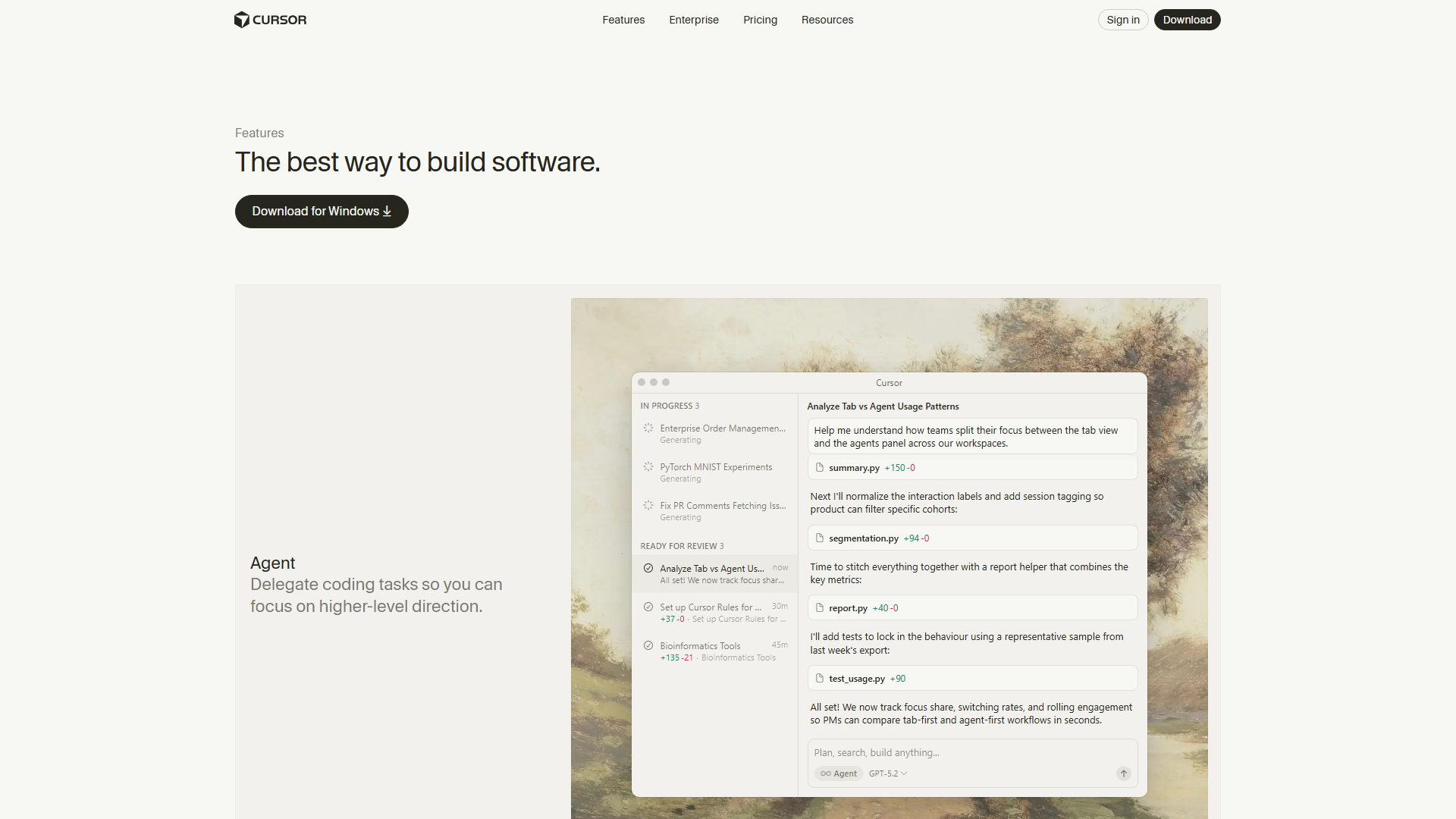
Cursor has introduced several features this year that change how we think about coding. It is no longer just about finishing a line of code. It is about the AI acting as a partner that can manage your whole project.
Composer (Agent Mode)
Composer is the standout feature that makes Cursor worth the money. It allows the AI to act as an agent that can read and write to multiple files at the same time. You can open a prompt and say something like “add a user login page with password reset logic.” The AI will then create the new frontend components, add the backend routes, and update your database schema.
I have found that this feature works best when you give it clear instructions. It shows you a side-by-side view of all the changes it wants to make. You can reject certain parts or ask it to try again with a different approach. In 2026, Composer has become even faster and can often finish complex tasks in under 30 seconds. It can even run terminal commands to install new packages or run your tests to verify its work.
This mode uses a custom model that is four times faster than standard models. It understands the links between your files better than a simple chat window. If you are starting a new project, you can build the basic structure in minutes. It feels like having a junior developer who never gets tired and follows your every command.
Codebase Indexing
Codebase indexing is what gives Cursor its “brain.” When you open a project, Cursor creates a local index of every file using a process called Retrieval-Augmented Generation. This allows the AI to understand your unique architecture and helper functions. If you ask “@codebase how do I handle errors here,” it looks through your actual files to find the answer.
This feature is much better than the basic context windows found in other editors. It does not just look at the file you have open. It looks at the whole project to make sure its suggestions are accurate. The index stays updated as you type, so the AI always knows your latest changes. This helps prevent bugs that happen when the AI suggests using a function that no longer exists.
You can also use the “@” symbol to point the AI toward specific files, folders, or even documentation. If you want to use a specific library, you can type “@docs” and give it a URL. The AI will read the docs and help you use that library correctly. This saves a huge amount of time that would usually be spent searching Google or Stack Overflow.
Shadow Workspace
Shadow Workspace is a newer feature added for 2026 that improves code reliability. When the AI generates a fix or a new feature, it runs a hidden version of your project in the background. It checks if the code compiles and if there are any obvious linter errors. If the code is broken, the AI tries to fix it before you ever see it.
This helps solve the problem of “broken” AI code that looks good but won’t run. It acts as a first layer of testing that catches simple syntax mistakes. I have noticed that this feature reduces the number of times I have to go back and forth with the AI. It makes the whole experience feel much more professional and less like a toy.
The background instance is lightweight and does not slow down your main editor. It uses a small, fast model to do the checking. This feature is currently only available on the Pro and Business plans. It is a must-have for anyone working on large, complex apps where one wrong character can break everything.
Pricing and Plans
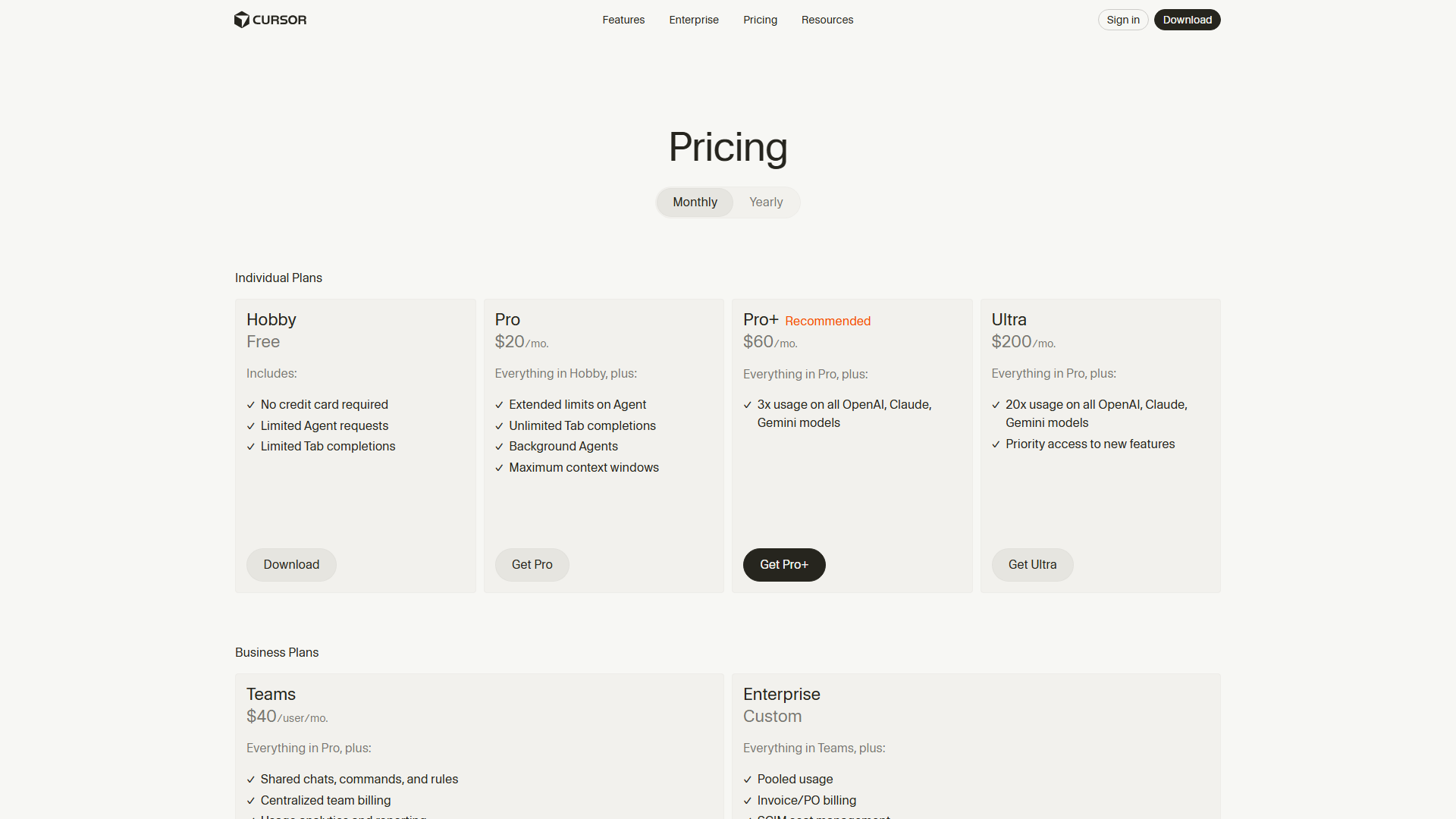
Cursor offers a few different ways to pay based on how much you code. You can start with the free plan to see if you like the interface. Professional developers will likely need one of the paid tiers to get the most out of the AI.
| Plan | Price | Best For | Key Limits |
|---|---|---|---|
| Hobby | $0/mo | Occasional coding | 2000 completions/mo |
| Pro | $20/mo | Solo developers | 500 fast requests |
| Business | $40/mo | Small teams | Unlimited requests |
| Enterprise | Custom | Large companies | Audit logs & SCIM |
Hidden Costs to Watch For
There are no major hidden fees, but you should watch your usage limits. If you use up your 500 fast requests on the Pro plan, you moved to a “slow” queue. During busy times, this can make the AI feel sluggish. You can buy more fast requests if you need them, but the costs can add up quickly.
Is It Worth the Price?
If you code for a living, the $20 monthly fee is a great deal. It easily saves two or more hours of work every week. For a developer making a standard salary, the tool pays for itself in a single day. However, if you only code a few times a month, the free plan or a cheaper tool like GitHub Copilot might be better.
Ease of Use & Getting Started
Setting up Cursor is one of the easiest parts of the experience. Since it is based on VS Code, the installer is small and runs on Windows, Mac, and Linux. When you first open it, the app asks if you want to import your settings from VS Code. I was able to move all my themes and keybindings in about 30 seconds.
The learning curve is very low for most people. You use it just like any other editor until you need the AI. You hit “Cmd + K” to edit code or “Cmd + L” to ask a question in the chat. The interface is clean and stays out of your way.
The onboarding process includes a quick tutorial that shows you how to use the AI features. The documentation is clear and uses simple examples. I think a beginner could feel comfortable with the tool within an hour of installing it. The most difficult part is learning how to write good prompts to get the best results from the AI.
Integrations & API
Cursor works with the vast majority of VS Code extensions. You can find them through the built-in extension view just like you would in Microsoft’s editor. It also has deep links with GitHub for managing your pull requests and issues.
Native Integrations:
- GitHub and GitLab for version control.
- Every major programming language.
- Standard debuggers for Python, JS, and C#.
- Terminal support for Zsh, Bash, and PowerShell.
- Docker and Kubernetes extensions.
- Popular themes like One Dark and Dracula.
- Linting tools like ESLint and Prettier.
One area where it struggles is the official Microsoft extension marketplace. Some Microsoft-owned extensions have terms that prevent them from being used in forks. This means you might need to use alternative versions of the Python or C++ tools. Most users find workarounds on the Cursor forum, but it is a small hurdle to keep in mind.
Customer Support
Support for Cursor is mostly handled through their official community forum. If you have a bug or a question, you post it there and wait for a response. The developers are active, but they cannot answer every single post immediately.
There is no phone support and email support is usually reserved for billing issues. This can be a problem if you have a critical bug that stops you from working. However, the community is very helpful and often solves problems before the staff can.
The documentation is good but could be more detailed for advanced features. They have a YouTube channel with helpful videos, but these are not updated as often as the app itself. Overall, the support is okay but not as strong as what you get from a huge company like Microsoft.
Security & Compliance
Security is a major focus for the Cursor team since they handle your private code. They have a “Privacy Mode” that you can turn on in the settings. When this is on, none of your code is stored on their servers or used to train their models.
Security Specs:
- SOC 2 Type 2 certified.
- GDPR and CCPA compliant.
- AES-256 encryption for data at rest.
- TLS 1.2+ for data in transit.
- Zero data retention options for businesses.
For large companies, they offer a Business plan with single sign-on and better admin controls. You can control which models your team uses and see usage reports. They also do annual security audits and penetration tests to find and fix vulnerabilities. If you work in a high-security job, you should check with your IT team before using any AI tool that sends code to the cloud.
Who Should Use Cursor?
Cursor is not for everyone, but it is perfect for certain types of developers. It shines in projects where you need to move fast and change many things at once.
Perfect for: Full-stack developers – The ability to edit frontend and backend code at the same time is a huge win.
Great for: Junior developers – The AI can explain complex code and help you learn new languages faster.
Also suits: Senior engineers – It handles the boring parts of the job so you can focus on architecture and hard logic.
❌ Cursor is NOT For You If…
- You work in a strictly air-gapped environment – Cursor needs an internet connection for its best features to work. If you cannot send any data to the cloud, you won’t be able to use the AI.
- You are on a very tight budget – The $20 price is higher than some other options. If every dollar counts, a free extension for VS Code might be better for now.
- You rely on specific Microsoft-only extensions – If your workflow depends on the latest version of the official C++ or Python extensions, you might find the workarounds annoying.
What Real Users Are Saying
Most developers on Reddit and G2 praise the tool for its speed and context awareness. They often say they can never go back to regular VS Code after using Composer. However, there are also some common complaints that show up in reviews.
Most Praised:
- The Composer multi-file editing feels like magic.
- It is much smarter than GitHub Copilot at understanding the project.
- The UI is familiar and easy to move to.
Most Criticized:
- The price is high for solo users.
- The AI can sometimes be “lazy” and suggest partial code.
- Frequent updates sometimes break small features.
Average Rating: 4.7/5 across 2,000+ reviews on G2 and Reddit. Users generally feel that the productivity boost is worth the small bugs and high price. One user mentioned that they built a full React app in one weekend using only the AI.
Top Alternatives to Consider
If Cursor does not seem like the right fit, there are other tools you can try. Each has its own strengths and price points.
| Alternative | Best For | Starting Price | vs Cursor |
|---|---|---|---|
| GitHub Copilot | Integration | $10/mo | Cheaper but less project context. |
| Claude Code | CLI usage | Pay-per-token | Better for terminal-heavy workflows. |
| Windsurf | Agentic AI | $20/mo | Very similar but newer to the market. |
| JetBrains AI | Java/Kotlin | $15/mo | Better for IDEs like IntelliJ or PyCharm. |
Common Issues & How to Fix Them
Even the best tools have problems sometimes. I have listed the most common issues reported by users this year and how you can solve them.
Extension Market Access
- Problem: You cannot find or update the official Microsoft Python or C++ extensions.
- Solution: Go to the Open VSX website and download the extension file manually. Then, use the “Install from VSIX” option in the Cursor extension menu.
Connection Stalls
- Problem: The AI chat hangs or says it cannot connect to the server.
- Solution: Check if you are using a VPN. If you are, try turning it off or switching to a different server. You can also try disabling HTTP/2 in the Cursor settings.
Hallucinations in Large Files
- Problem: The AI suggests changes that break the code in very long files.
- Solution: Try highlighting only the part of the code you want to change. You can also use the “@file” tag to force the AI to focus on specific context.
Final Verdict
Cursor is the best code editor for 2026 if you want to use the full power of AI. It is much more than just an autocomplete tool. It is a partner that can build entire features and fix complex bugs across your whole project.
While the $20 price is high, the time you save is usually worth much more. If you are a professional developer or a serious hobbyist, I highly recommend giving it a try. The free plan is a great way to start without any risk.
Rating: 9.2/10 – The current king of AI-native code editors.
FAQ
Is Cursor free to use?
Yes, there is a free Hobby plan that you can use forever. It gives you 2,000 completions and a few AI chat messages every month. To get the best features like Composer and 500 fast requests, you need to pay for the Pro plan.
Can I use my own API keys?
Yes, Cursor allows you to use your own keys for OpenAI or Anthropic. This can be cheaper if you do not code every day. However, you will miss out on some of Cursor’s custom models and the fast predictive Tab feature.
Does Cursor work with Vim?
Yes, Cursor supports the standard VS Code Vim extension. You can use all your favorite Vim keybindings while still having access to the AI features. It works just like it does in regular VS Code.
Is my code safe with Cursor?
Cursor is SOC 2 Type 2 certified and has a strict privacy policy. If you turn on Privacy Mode, they do not store your code or use it to train their models. Most professional teams feel safe using it with these settings enabled.
Can I move from VS Code easily?
Yes, moving is very simple. When you install Cursor, it will offer to import all your extensions, themes, and settings from VS Code. Most people are back to work in less than five minutes.
Does it support my programming language?
Cursor supports every language that VS Code supports. This includes popular ones like Python, JavaScript, and Java, as well as more niche ones like Rust or Go. The AI is generally better at popular languages because it has more data to learn from.
