
- Real-time team collaboration efficiency
- Streamlined component and asset management
- Intuitive auto-layout for responsive design
- Cloud-based platform reduces version conflicts
- Extensive library of community plugins
- Performance lags with large files
- Requires constant internet for full access
- Steep learning curve for advanced features
- Occasional slow loading during complex projects
- Limited functionality in offline mode

Quick Answer: Figma is the gold standard for collaborative design, offering a cloud-based platform that unites UI design, prototyping, and developer handoff. It earns a 9.5/10 for its industry-leading multiplayer editing and massive community ecosystem.
Best For: Product teams, UX/UI designers, and developers who need to collaborate on interfaces in real time.
Key Takeaways:
- ✅ Real-time collaboration allows dozens of users to edit a single file simultaneously without version conflicts.
- ✅ Massive plugin library with thousands of community-built tools to automate repetitive design tasks.
- ⚠️ Resource intensive performance can cause significant lag when working on very large files with hundreds of layers.
- 💰 Pricing starts with a generous free tier, while professional plans begin at $12 per editor per month.
Figma has fundamentally changed how digital products are built by moving the entire design process into the browser. It replaces fragmented workflows where designers, developers, and stakeholders used different tools to communicate. This review explores whether Figma remains the top choice for design teams in a market that is becoming increasingly crowded with AI-driven competitors.
Ratings Breakdown
Figma secures high marks across most categories because it focuses on solving actual workflow bottlenecks for product teams. While it dominates in collaboration and feature depth, it faces minor hurdles in performance for complex documents. Here is how it scores across five key metrics.
| Category | Rating | Notes |
|---|---|---|
| Ease of Use | 8/10 | Intuitive for basic design but has a steep curve for variables and auto-layout. |
| Features | 10/10 | Offers everything from whiteboarding to advanced dev handoff and AI tools. |
| Value for Money | 9/10 | The free tier is excellent, and paid plans scale well for growing teams. |
| Customer Support | 8/10 | Strong help documentation and community forums, though direct support can be slow. |
| Performance/Reliability | 7/10 | Excellent uptime, but web-based architecture struggles with massive, complex files. |
Overall: 8.4/10 – Figma is the most versatile and collaborative design tool available today for professional product teams.
Pros and Cons (The Real Deal)
The platform succeeds because it treats design as a team sport rather than a solo activity. However, being a browser-based tool means it inherits specific technical limitations that users should understand before committing.
✅ What Figma Gets Right
Figma has built its reputation on making design accessible to everyone on a team, regardless of their operating system. These strengths are the primary reasons why companies like Spotify and Slack rely on it.
- Real-time team collaboration efficiency – Multiple people can edit the same file at once, which eliminates the need for saving and sending files. This “multiplayer” mode ensures that everyone is always looking at the latest version of a design.
- Streamlined component and asset management – You can create reusable UI elements that update across an entire project when changed in the main library. This feature is essential for maintaining brand consistency in large design systems.
- Intuitive auto-layout for responsive design – This tool allows buttons to grow with their text and lists to reorder themselves automatically. It mimics how real web code works, which saves designers hours of manual resizing.
- Cloud-based platform reduces version conflicts – Since all files live on Figma servers, you never have to worry about “Final_Version_v2.fig” files clogging your hard drive. Every change is tracked in a searchable version history.
- Extensive library of community plugins – Users have access to thousands of free widgets and plugins that handle everything from accessibility checks to icon imports. This ecosystem allows you to customize the tool to fit your specific workflow.
❌ Where Figma Falls Short
Despite its dominance, Figma is not a perfect piece of software for every situation. You should be aware of these trade-offs, especially if you work in areas with poor connectivity or on extremely large projects.
- Performance lags with large files – When a file contains thousands of layers or complex prototypes, the interface can become sluggish. You may notice delays when zooming or moving elements in these heavy documents.
- Requires constant internet for full access – While there is a basic offline mode, most of the core collaborative features require an active connection. You cannot start new files or access your team libraries without being online.
- Steep learning curve for advanced features – While drawing a rectangle is easy, mastering features like “Variables” and “Prototyping Logic” takes significant time. New users often feel overwhelmed by the density of the advanced properties panel.
- Occasional slow loading during complex projects – Opening a massive design system file can sometimes take thirty seconds or more. This loading time can interrupt your flow when jumping between multiple projects.
- Limited functionality in offline mode – You cannot effectively collaborate or sync changes while offline. This makes it a difficult tool for designers who frequently work while traveling or in areas with unstable Wi-Fi.
What is Figma?
Figma is a collaborative web-based design tool founded in 2012 and headquartered in San Francisco. It was built on the idea that design should be accessible to everyone in the browser, rather than locked inside expensive desktop software.
The platform serves as an all-in-one space where teams can brainstorm on a digital whiteboard, design high-fidelity interfaces, and hand off code to developers. Notable clients include large organizations where nearly everything designers and developers need is available in Figma.
Figma currently holds the largest market share in the UI/UX design industry. It has successfully expanded beyond just “drawing” to include FigJam for whiteboarding and Dev Mode for technical handoffs.
Key Features (Deep Dive)
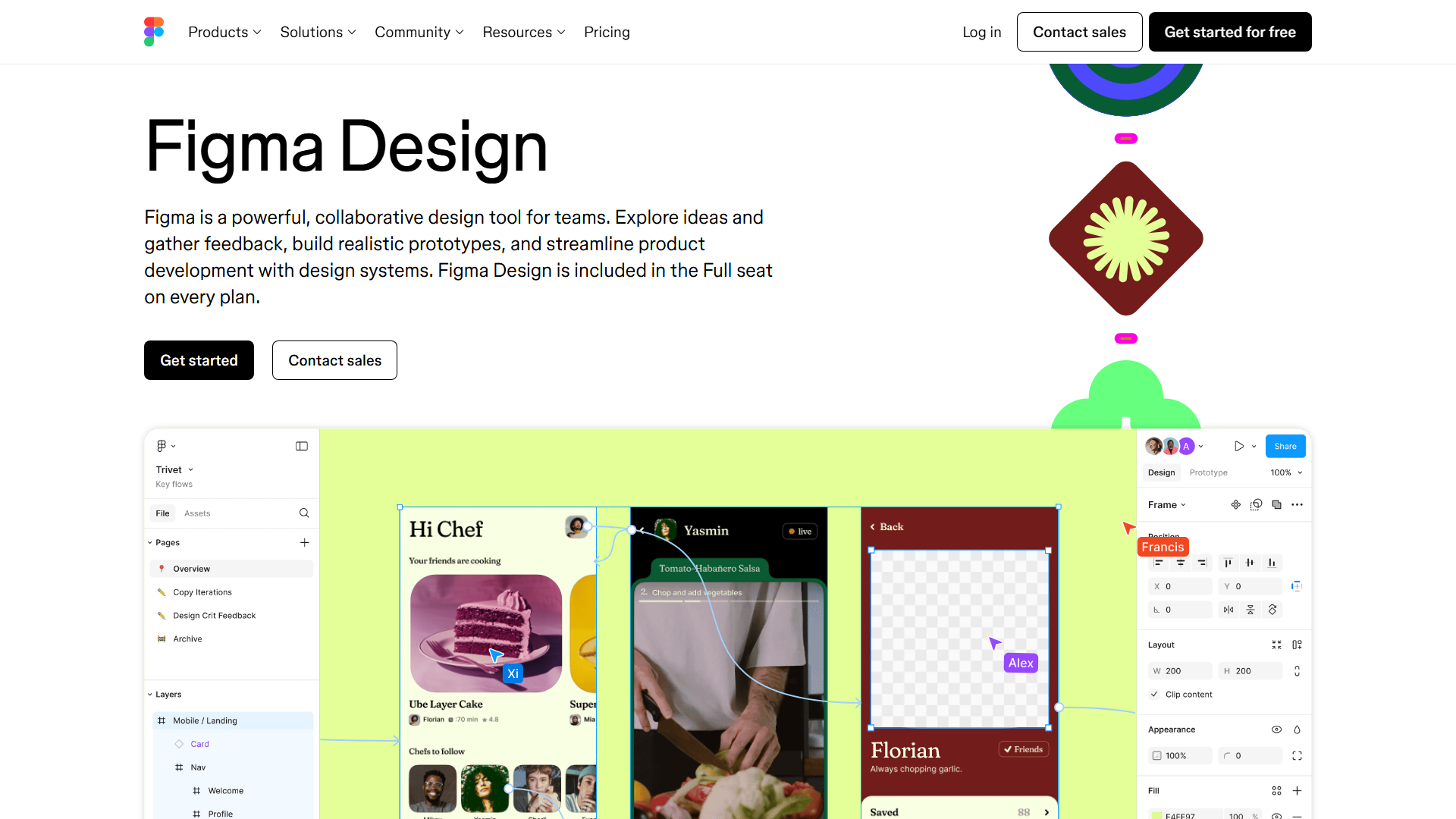
Figma is more than just a vector graphics editor; it is a full product development environment. The platform offers specialized tools for every stage of the design process, from the first sketch to the final line of code.
Auto-Layout
- What it does: It is a property you can add to frames and components to let them grow or shrink based on their content.
- Why it matters: It automates the tedious task of moving elements around when text changes or screens are resized.
- How it compares: It is much more powerful than the “Smart Layout” in Sketch because it supports nested structures and absolute positioning.
Dev Mode
- What it does: This is a dedicated space for developers to inspect designs, grab CSS/Swift/Kotlin code snippets, and view documentation.
- Why it matters: It bridges the gap between design and development by giving engineers exactly what they need without cluttering the design workspace.
- How it compares: It replaces third-party handoff tools like Zeplin by keeping the entire process inside the original design file.
FigJam
- What it does: An online whiteboard for teams to ideate, create flowcharts, and run workshops using sticky notes and drawings.
- Why it matters: It allows researchers and product managers to collaborate early in the process before high-fidelity design begins.
- How it compares: It integrates tightly with Figma Design, letting you copy and paste elements between the whiteboard and the design canvas.
Design Systems and Libraries
- What it does: A central repository for brand colors, typography, and reusable components that can be shared across an entire organization.
- Why it matters: It ensures that everyone stays aligned and excited about the product vision while maintaining a consistent user experience.
- How it compares: Figma’s cloud-native approach makes syncing these libraries much faster than competitors who rely on manual file uploads.
Advanced Prototyping
- What it does: A toolset that allows you to create interactive, clickable previews of your designs with transitions and logic.
- Why it matters: It lets you test user flows and gather feedback without writing a single line of production code.
- How it compares: With the addition of “Variables,” you can now create prototypes that remember user input, which previously required tools like Axure or ProtoPie.
Pricing and Plans
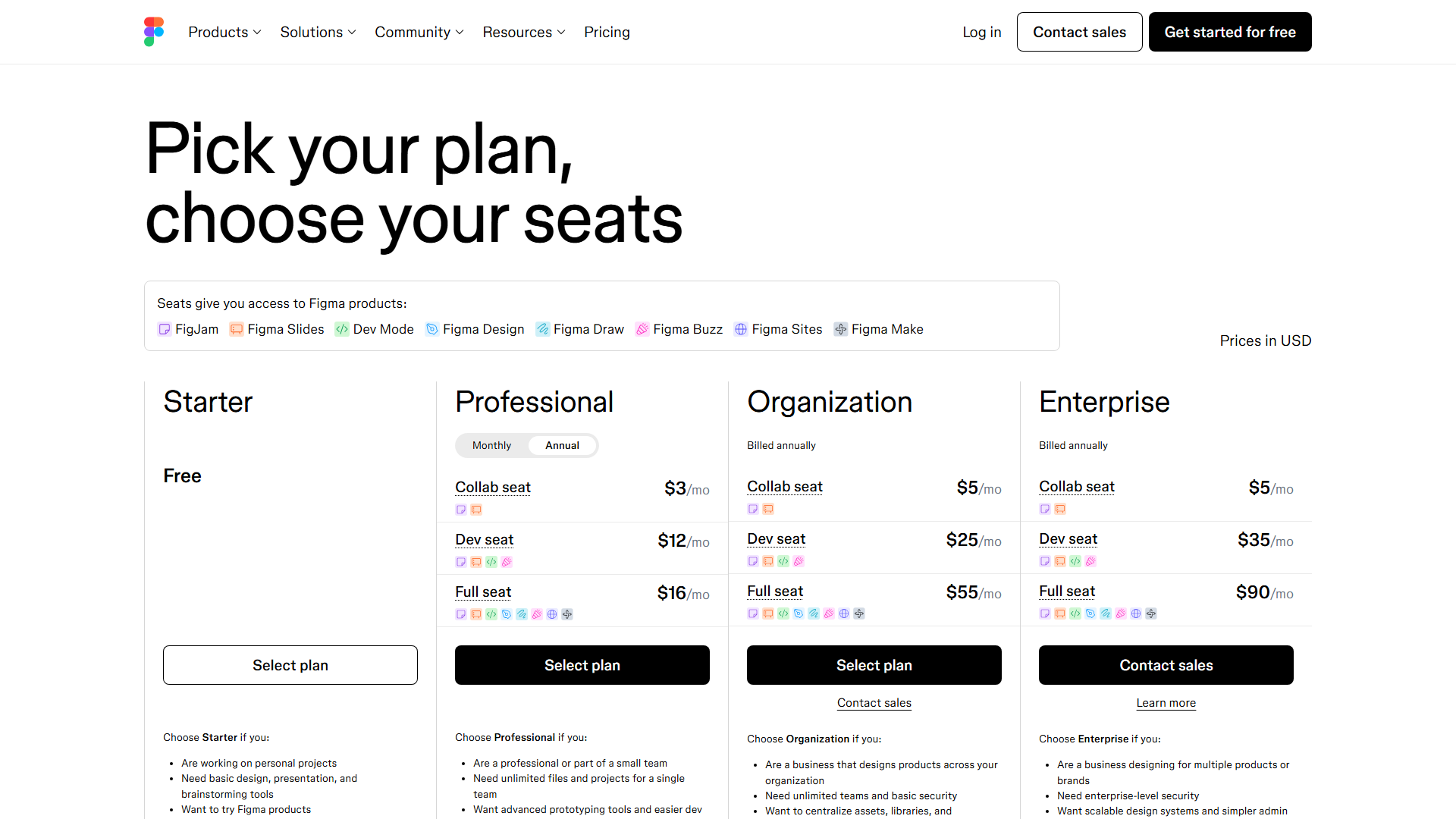
Figma uses a “per-seat” pricing model where you pay for each person who needs editing access. Viewers who only need to comment or export assets are generally free, which helps keep costs down for large organizations.
| Plan | Price | Best For | Key Limits |
|---|---|---|---|
| Starter | $0 | Individuals/Small Teams | 3 files, 1 project |
| Professional | $12/editor/mo | Growing Teams | No file limit, Private projects |
| Organization | $45/editor/mo | Large Companies | Design systems, SSO security |
| Enterprise | $75/editor/mo | Huge Corps | Advanced security, Guest controls |
Hidden Costs to Watch For
The biggest hidden cost in Figma is the “billing surprise” that happens when non-designers accidentally upgrade themselves to a paid seat. If you don’t lock down permissions, any teammate you invite can click “Edit” and trigger a new monthly charge on your next bill.
Is It Worth the Price?
For professional teams, Figma is easily worth the investment. The time saved by not having to manage files or manually hand off specs to developers pays for the subscription cost within the first few days of a project.
Ease of Use & Getting Started
Getting started with Figma is remarkably fast because there is no software to install; you just create an account and start designing in your browser. The interface is clean and follows standard design software conventions, making it familiar to anyone who has used Photoshop or Sketch.
The initial setup for a team takes about ten minutes. You can invite members via email and set up your first shared project immediately. Figma also provides a “Playground” file that walks you through basic shortcuts and tools as soon as you log in.
The learning curve for the basics is low. However, mastering “Auto-Layout” and “Variables” requires several hours of practice or watching video tutorials. Fortunately, the Figma community maintains a massive YouTube presence and a library of free templates to help new users learn by doing.
Integrations & API
Figma connects with most major productivity and development tools. These integrations help teams keep their designs synced with their project management boards and documentation sites.
Top native integrations include:
- Jira and Trello for task tracking
- Slack and Microsoft Teams for notifications
- Storybook for syncing code components
- Notion and Confluence for documentation
- Asana for project management
- Maze for user testing
- Microsoft Visual Studio Code (via Figma for VS Code)
The Figma API is robust and well-documented. It allows developers to build custom internal tools to automate repetitive tasks or export data in specific formats. You can also use tools like Zapier to connect Figma to thousands of other apps without writing custom code.
Customer Support
Figma relies heavily on self-service support and its massive community. The Help Center contains hundreds of detailed articles with GIFs and videos that solve almost any “how-to” question you might have.
For technical issues, you can submit a support ticket via email. Response times vary depending on your plan; Enterprise users get priority support, while Starter users may wait 24 to 48 hours for a reply.
The Figma Community forum is very active. It is often the best place to find workarounds for specific design challenges or to request new features from the development team.
Security & Compliance
Figma is built for enterprise-grade security, which is why it is used by some of the most regulated companies in the world. They maintain several key certifications to ensure user data remains protected.
The platform is SOC 2 Type 2 and SOC 3 compliant. It also adheres to GDPR for privacy and offers ISO 27001 certification. For large organizations, Figma supports SAML-based Single Sign-On (SSO) to manage user access through systems like Okta or OneLogin.
Figma guarantees 99.9% uptime for its Enterprise customers. Data is encrypted both at rest and in transit, and the platform performs regular security audits and penetration tests to find vulnerabilities.
Who Should Use Figma?
Figma is designed to be the “middle ground” where different departments meet. It is no longer just for designers; it is a tool for anyone involved in the digital product lifecycle.
Perfect for: UI/UX Designers – Those who need to build high-fidelity interfaces and maintain complex design systems with reusable components.
Great for: Front-end Developers – Engineers who want to inspect designs, grab CSS code, and see exactly how many pixels exist between elements without asking a designer.
Also suits: Product Managers – Teams that need to map out user flows in FigJam and leave feedback directly on design mocks without learning complex design tools.
❌ Figma is NOT For You If…
Figma is a specialized tool for digital interfaces. It is not a general-purpose graphic design app or a photo editor, and using it for those tasks will lead to frustration.
- You need heavy photo editing – Figma lacks the pixel-level manipulation tools found in Photoshop. Use Figma for layouts, not for retouching photos.
- You’re a print designer – Figma does not support CMYK color modes or high-resolution print exports. It is built strictly for digital screens (RGB).
- Your budget is $0 for a large team – While the free tier is great for individuals, a team larger than two people will quickly hit the three-file limit and need to pay.
What Real Users Are Saying
Most users praise Figma for its “multiplayer” nature. They love that they can jump into a file with a client and make live changes while on a call.
Most Praised:
- Real-time collaboration without lag
- The simplicity of sharing a URL instead of a file
- The “Auto-Layout” feature for responsive designs
Most Criticized:
- High memory usage in Chrome can crash the browser
- The pricing for “Dev Mode” seats feels expensive for some teams
- Lack of a true offline desktop experience
Average Rating: 4.7/5 across 5,000+ reviews on G2 and Capterra.
One common sentiment on Reddit is that once a team switches to Figma, they can never go back to “file-based” tools like Sketch because the collaboration feels too slow.
Top Alternatives to Consider
While Figma is the market leader, other tools might be better depending on your specific hardware or budget constraints.
| Alternative | Best For | Starting Price | vs Figma |
|---|---|---|---|
| Penpot | Open Source | Free | Works with SVG natively and is self-hostable. |
| Sketch | Mac Purists | $10/mo | Better offline performance but limited to macOS. |
| Adobe XD | Adobe Users | Varies | Tighter integration with Creative Cloud but fewer features. |
| Canva | Non-Designers | $0 | Much easier for social media but lacks UI tools. |
Common Issues & How to Fix Them
Even the best software has quirks. Most Figma issues are related to its web-based nature or how it handles complex data.
Performance Lag
- Problem: The file becomes choppy or slow when moving layers.
- Solution: Break large projects into multiple pages or files. Consolidate hidden layers and use the “Flatten” tool on complex vector shapes to reduce the rendering load.
Font Syncing Issues
- Problem: Collaborators see a “Missing Fonts” warning when opening a file.
- Solution: Use Google Fonts, which are built-in, or have the team admin upload your custom local fonts to the Organization library so everyone sees them automatically.
Accidental Changes
- Problem: A teammate accidentally moved or deleted a finished design.
- Solution: Use the “Version History” to restore a previous state of the file. You can also “Lock” specific layers or frames to prevent them from being clicked.
Final Verdict
Figma is the most complete design tool on the market today. It successfully combines powerful design features with the simplicity of a web link, making it the default choice for modern product teams. While its heavy reliance on the internet and memory consumption are valid concerns, the benefits of real-time collaboration far outweigh these drawbacks.
If you are a solo designer or a massive enterprise, Figma provides the scale and stability needed to build complex apps. It is not just a replacement for old design tools; it is a new way to work together.
Rating: 9.5/10 – The undisputed king of collaborative interface design.
FAQ
What is the difference between a Full, Dev, and Collab seat?
A Full seat (Editor) allows you to create and edit designs in Figma and FigJam. A Dev seat is a cheaper option specifically for developers who only need to inspect designs, grab code, and use Dev Mode features. A Collab seat usually refers to the free “Viewer” role, where users can see files and leave comments but cannot change the design.
Do I need to know how to code to use Figma?
No, you do not need any coding knowledge to use Figma. It is a visual “drag and drop” tool. However, understanding basic CSS concepts like padding and flexbox will help you master the “Auto-Layout” feature much faster.
Is Figma still relevant and worth the cost in 2025?
Yes, it remains the industry standard. Its recent updates in AI and the expansion of the “Variables” system have kept it ahead of competitors. Most design jobs now list Figma proficiency as a core requirement.
How does Figma handle large files with thousands of prototypes?
Figma handles them by using a specialized rendering engine, but it has limits. If you exceed the 2GB memory limit for a single file, you will experience crashes. It is best practice to link multiple smaller files together using “Prototyping Links” rather than putting everything in one document.
Is Figma AI effective for professional wireframing?
Figma’s AI tools, often called “Figma AI,” are helpful for getting dummy content and basic layouts started. While they can generate a “first draft” of a wireframe based on a text prompt, they still require a human designer to refine the logic and brand styling. It is a time-saver, not a designer replacement.
